![]() |
ubuntu.com - launchpad.net - ubuntu help
|
|
|||||||
|
Tutorials & Tips The place to find Ubuntu related Tips & Tricks. |
|
|
Thread Tools | Display Modes |
|
|
#1 |
|
Fresh Brewed Ubuntu
![]() |
Create your own personal keyboard layout
This HowTo is for those of you who are not satisfied with the layout of your keyboard, like myself.
You can have several reasons to do this (eg. for the sake of the experience, for achieving a more ergonomical typing experience, etc). I have done this for the sake of ergonomy. I type a lot (professionally) and I use my computer most of the time (99%). My keyboard is now non-standard, but that's not a problem, since I'm much more productive this way and I STILL know how to use a normal keyboard. 1. The Basics You don't have to mess with many things. Just edit one file. But to achieve your goal, you have to understand what's in it. The file is located at: /etc/X11/xkb/symbols/ This is where the different language keyboard layout files are. I use pt and I'll use that as an example. First, backup the file you want to edit so you can put things back normal again if not satisfied. For that do: Code:
cp /etc/X11/xkb/symbols/pt /etc/X11/xkb/symbols/pt_backup now open the file: Code:
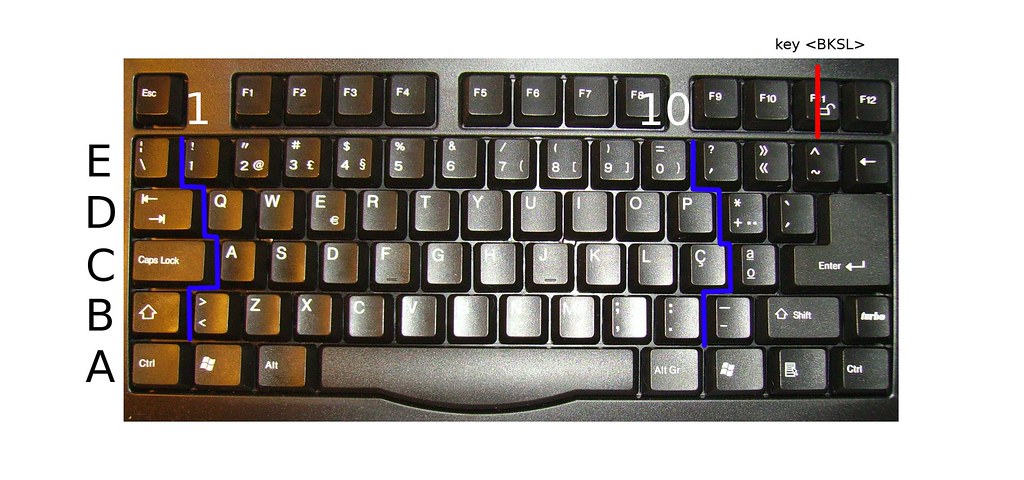
sudo gedit /etc/X11/xkb/symbols/pt key <AE01> { [ 1, copyright, registered, trademark ] };The entries with key <xxxx> are the name of the keys (based on xkb keycodes*) and their resulting symbols*. There are four symbols you can get when pressing a given key: normal (no modifier key), with Shift key modifier, with Alt Gr key modifier and with Alt Gr + Shift key modifiers. Let's take a look at a particular example. Where is located the key <AE12>? You can take a look at following image: ![]() or you can understand the logic behind it. The key <AE12> is located is an Alphanumeric character, located at the row E at the column 12. You can understand the rows and columns layout looking at the picture below: ![]() The other keys, like Control, Alt, and so on, have particular keycodes names. Consult the list of available keycodes to know the key you want. 2. The Actual Configuration
I wanted to change the dead accent and the dead tilde location** as I find them rather unergonomically on the pt keyboard. As such, I edited the file and exchanged the places of the symbols entries for those keys: key <AD11> { [ plus, asterisk, dead_diaeresis, dead_abovering ] }; key <AD12> { [dead_acute, dead_grave, dead_tilde, dead_macron ] }; and: key <AC10> { [ ccedilla, Ccedilla, dead_acute, dead_doubleacute ] }; key <AC11> { [ masculine, ordfeminine, dead_circumflex, dead_caron ] }; to become: key <AD11> { [dead_acute, dead_grave, dead_tilde, dead_macron ] }; key <AD12> { [ plus, asterisk, dead_diaeresis, dead_abovering ] }; and: key <AC10> { [ masculine, ordfeminine, dead_circumflex, dead_caron ] }; key <AC11> { [ ccedilla, Ccedilla, dead_acute, dead_doubleacute ] }; It's easy as this. Remember that you can even put different symbols that weren't there in the first place, like making your backspace key type an ® you you want. It's all up to you. You then
3. Hints 1. Since to try the new keyboard layout you'll need to restart your X session, you can use this trick to test it without abandoning your current session. After saving the file, you open a terminal and type: Code:
sudo xinit -- :2 2. If you really like your new keyboard layout (like I do) and want it to survice future installations, you just have to put your keyboard layout file on a archive folder on you home (supposing you have a different partition for you /home) and then link the file to the actual file on /etc. example: You create a archive folder on your /home on the location: /home/archive/keyboard/layout and put there your layout file my_layout. Then you just have to backup your language layout file (probably you just did on the beginning of the HowTo) and then link your layout file to the actual language layout file, like this: Code:
sudo ln -sf /home/archive/keyboard/layout/my_layout /etc/X11/xkb/symbols/pt 4. Documentation You can find further information about this topic on the following sites:
5. Reverting to the Original Layout 1. Ok, you are not satisfied with the experience, you grow tired of your layout and want your old keyboard back. No problem, since you made a backup at the beginning of the HowTo. To revert to your original layout, you just have to do: Code:
sudo cp /etc/X11/xkb/symbols/pt_backup /etc/X11/xkb/symbols/pt 2. You thought you were Dvorak himself and changed your complete keyboard layout. You were prepared to chalenge yourself for the hard work of learning a complete new set of keys and then you fail miserably in doing so, finding yourself stuck with a untypeable keyboard where it's a headache to find the keys. Don't stress. You have the layout backup. "But I can't type the commands!". No problem. Press ctrl+alt+F1 and you're on the console. Login and type: Code:
sudo cp /etc/X11/xkb/symbols/pt_backup /etc/X11/xkb/symbols/pt Restart your session and you'll have your normal keyboard back again. *An extensive list of keycodes and symbols available can be found on the files I attached for your convinience. These can also be found on /etc/X11/xkb/keycodes/xfree86 and /usr/include/X11/keysymdef.h for the keycodes and symbols respectively. **In actuality, I changed the location of all dead accents and the ? and the ! punctuation marks. I don't know who designated those keys on the Portuguese keyboard, but certainly it was not a typist professional. It's not my point to discuss this here, so I just simplified the example. Last edited by henriquemaia; June 6th, 2006 at 04:45 AM.. Reason: Updated. New section added. |
|
|
|
|
|
#2 |
|
Fresh Brewed Ubuntu
![]() |
Re: Create your own personal keyboard layout
I have updated the HowTo. I have added the section Reverting to the Original Layout.
|
|
|
|
|
|
#3 |
|
Quad Shot of Ubuntu
![]() Join Date: Dec 2004
Location: Finland
Beans: 400
|
Re: Create your own personal keyboard layout
Another way to configure the keyboard for X is to use a ~/.xmodmap file. It gets loaded automatically on X login. You can get the keycodes at least with xev (run in terminal). As an example, SWE/FIN Colemak layout.
Code:
! Q W F P G J L U Y Ö Å ¨ ! A R S T D H N E I O Ä ' ! < Z X C V B K M , . - !keycode 9 = Escape Escape !keycode 10 = 1 exclam !keycode 11 = 2 quotedbl at !keycode 12 = 3 numbersign sterling !keycode 13 = 4 currency dollar !keycode 14 = 5 percent !keycode 15 = 6 ampersand !keycode 16 = 7 slash braceleft !keycode 17 = 8 parenleft bracketleft !keycode 18 = 9 parenright bracketright !keycode 19 = 0 equal braceright !keycode 20 = plus question backslash !keycode 21 = dead_acute dead_grave !keycode 22 = BackSpace Terminate_Server !keycode 23 = Tab Tab keycode 24 = q Q keycode 25 = w W keycode 26 = f F keycode 27 = p P keycode 28 = g G keycode 29 = j J keycode 30 = l L keycode 31 = u U keycode 32 = y Y keycode 33 = odiaeresis Odiaeresis keycode 34 = aring Aring !keycode 35 = diaeresis asciicircum dead_tilde !keycode 36 = Return !keycode 37 = Control_L keycode 38 = a A keycode 39 = r R keycode 40 = s S keycode 41 = t T keycode 42 = d D keycode 43 = h H keycode 44 = n N keycode 45 = e E EuroSign keycode 46 = i I keycode 47 = o O keycode 48 = adiaeresis Adiaeresis !keycode 49 = section onehalf !keycode 50 = Shift_L !keycode 51 = apostrophe asterisk keycode 52 = z Z keycode 53 = x X keycode 54 = c C keycode 55 = v V keycode 56 = b B keycode 57 = k K keycode 58 = m M !keycode 59 = comma semicolon !keycode 60 = period colon !keycode 61 = minus underscore !keycode 62 = Shift_R !keycode 63 = KP_Multiply !keycode 64 = Alt_L !keycode 65 = space !keycode 66 = Caps_Lock !keycode 67 = F1 XF86_Switch_VT_1 !keycode 68 = F2 XF86_Switch_VT_2 !keycode 69 = F3 XF86_Switch_VT_3 !keycode 70 = F4 XF86_Switch_VT_4 !keycode 71 = F5 XF86_Switch_VT_5 !keycode 72 = F6 XF86_Switch_VT_6 !keycode 73 = F7 XF86_Switch_VT_7 !keycode 74 = F8 XF86_Switch_VT_8 !keycode 75 = F9 XF86_Switch_VT_9 !keycode 76 = F10 XF86_Switch_VT_10 !keycode 77 = Num_Lock !keycode 78 = Scroll_Lock !keycode 79 = KP_Home KP_7 !keycode 80 = KP_Up KP_8 !keycode 81 = KP_Prior KP_9 !keycode 82 = KP_Subtract !keycode 83 = KP_Left KP_4 !keycode 84 = KP_Begin KP_5 !keycode 85 = KP_Right KP_6 !keycode 86 = KP_Add !keycode 87 = KP_End KP_1 !keycode 88 = KP_Down KP_2 !keycode 89 = KP_Next KP_3 !keycode 90 = KP_Insert KP_0 !keycode 91 = KP_Delete KP_Decimal !keycode 94 = less greater bar !keycode 95 = F11 XF86_Switch_VT_11 !keycode 96 = F12 XF86_Switch_VT_12 !keycode 97 = Home !keycode 98 = Up !keycode 99 = Prior !keycode 100 = Left !keycode 102 = Right !keycode 103 = End !keycode 104 = Down !keycode 105 = Next !keycode 106 = Insert !keycode 107 = Delete !keycode 108 = KP_Enter !keycode 109 = Control_R !keycode 110 = Pause Break !keycode 111 = Print Execute !keycode 112 = KP_Divide !keycode 113 = Mode_switch !keycode 115 = Super_L !keycode 116 = Super_R !keycode 117 = Menu Code:
# Q W F P G J L U Y Ö Å ¨ # A R S T D H N E I O Ä ' # < Z X C V B K M , . - charset "iso-8859-1" keymaps 0-2,4-6,8-10,12-14 alt_is_meta include "qwerty-layout" include "linux-with-alt-and-altgr" strings as usual keycode 1 = Escape keycode 2 = one exclam keycode 3 = two quotedbl at keycode 4 = three numbersign sterling keycode 5 = four dollar dollar keycode 6 = five percent keycode 7 = six ampersand keycode 8 = seven slash braceleft keycode 9 = eight parenleft bracketleft keycode 10 = nine parenright bracketright keycode 11 = zero equal braceright keycode 12 = plus question backslash keycode 13 = dead_acute dead_grave keycode 14 = Delete keycode 15 = Tab keycode 16 = q keycode 17 = w keycode 18 = f keycode 19 = p keycode 20 = g keycode 21 = j keycode 22 = l keycode 23 = u keycode 24 = y keycode 25 = odiaeresis Odiaeresis keycode 26 = aring Aring keycode 27 = diaeresis asciicircum dead_tilde keycode 28 = Return keycode 29 = Control keycode 30 = a keycode 31 = r keycode 32 = s keycode 33 = t keycode 34 = d keycode 35 = h keycode 36 = n keycode 37 = e keycode 38 = i keycode 39 = o keycode 40 = adiaeresis Adiaeresis keycode 41 = section onehalf keycode 42 = Shift keycode 43 = apostrophe asterisk keycode 44 = z keycode 45 = x keycode 46 = c keycode 47 = v keycode 48 = b keycode 49 = k keycode 50 = m keycode 51 = comma semicolon keycode 52 = period colon keycode 53 = minus underscore keycode 54 = Shift keycode 56 = Alt keycode 57 = space keycode 58 = Caps_Lock keycode 86 = less greater bar keycode 97 = Control Code:
alias asdf='sudo loadkeys ~/.colemak.kmap' alias arst='sudo loadkeys fi-latin1' |
|
|
|
|
|
#4 | |
|
Fresh Brewed Ubuntu
![]() |
Re: Create your own personal keyboard layout
Quote:
|
|
|
|
|
|
|
#5 |
|
First Cup of Ubuntu
![]() Join Date: Jul 2007
Beans: 2
|
Re: Create your own personal keyboard layout
I have two questions:
How can I create my own dead keys, or modify existing dead keys. I use semicolon and comma as dead keys, and they don't quite match any of the existing dead keys. How do I save configuration settings? I modified the us file under etc\x11\xkb\symbols . But I get an access denied message every time I try to save it. I also tried saving to usr\share\x11\xkb . I'm using the Feisty version of Kubuntu. Konqueror and Kite are the programs I attempted to save the changes with. |
|
|
|
|
|
#6 | |
|
Fresh Brewed Ubuntu
![]() |
Re: Create your own personal keyboard layout
Quote:
If you use konqueror to access and edit the files, run konqueror in sudo mode, i.e. open a terminal and type: sudo konqueror |
|
|
|
|
|
|
#7 |
|
First Cup of Ubuntu
![]() Join Date: Jul 2007
Beans: 2
|
Re: Create your own personal keyboard layout
Thank you. "Sudo konqueror" really helped. Though it made me realize that the admin (root) level belongs to the system not the user. There's something evil about that ("Dave, what are you doing Dave?"). But at least I have the basic keys of my layout working.
Now, I just need to add the dead keys and turn my left alt to a shift, my left winkey to alt, caps lock to winkey, backspace to caps lock and AB05 to backspace. Thank you, Henriquemaia, you helped me a great deal (I thought Sudo was just a copy command). Last edited by soren.kyale; July 7th, 2007 at 12:16 AM.. |
|
|
|
|
|
#8 |
|
5 Cups of Ubuntu
![]() Join Date: Jun 2006
Location: Christchurch, New Zealand
Beans: 39
Ubuntu 8.10 Intrepid Ibex
|
Re: Create your own personal keyboard layout
Hello Ive Made a international dvorak with dead keys layout variant in the us file. woks fine
but it isnt in the layout list for gnome, im not exactly sure how i got it running i have set it through xorg.conf file and i can select it through kcontrol just not through gnome keyboard settings Is there a a cache that need refreshing or is it something else add this to bottom of the us file if you want to use it Code:
partial alphanumeric_keys
xkb_symbols "dv-intl" {
name[Group1]= "Dvorak - International (with dead keys)";
include "us(dvorak)"
key <TLDE> { [dead_grave, dead_tilde, grave, asciitilde ] };
key <AE01> { [ 1, exclam, exclamdown, onesuperior ] };
key <AE02> { [ 2, at, twosuperior, dead_doubleacute ] };
key <AE03> { [ 3, numbersign, threesuperior, dead_macron ] };
key <AE04> { [ 4, dollar, currency, sterling ] };
key <AE05> { [ 5, percent, EuroSign ] };
key <AE06> { [ 6, dead_circumflex, onequarter, asciicircum ] };
key <AE07> { [ 7, ampersand, onehalf, dead_horn ] };
key <AE08> { [ 8, asterisk, threequarters, dead_ogonek ] };
key <AE09> { [ 9, parenleft, leftsinglequotemark, dead_breve ] };
key <AE10> { [ 0, parenright, rightsinglequotemark, dead_abovering ] };
key <AE11> { [ bracketleft, braceleft, guillemotleft, guillemotleft ] };
key <AE12> { [bracketright, braceright, guillemotright,guillemotright ] };
key <AD01> { [dead_acute, dead_diaeresis, apostrophe, quotedbl ] };
key <AD02> { [ comma, less, ccedilla, Ccedilla ] };
key <AD03> { [ period, greater, dead_abovedot, dead_caron ] };
key <AD04> { [ p, P, odiaeresis, Odiaeresis ] };
key <AD05> { [ y, Y, udiaeresis, Udiaeresis ] };
key <AD08> { [ c, C, copyright, cent ] };
key <AD09> { [ r, R, registered, registered ] };
key <AD10> { [ l, L, oslash, Ooblique ] };
key <AD11> { [ slash, question, questiondown, dead_hook ] };
key <AD12> { [ equal, plus, multiply, division ] };
key <AD13> { [ backslash, bar, notsign, brokenbar ] };
key <AC01> { [ a, A, aacute, Aacute ] };
key <AC02> { [ o, O, oacute, Oacute ] };
key <AC03> { [ e, E, eacute, Eacute ] };
key <AC04> { [ u, U, uacute, Uacute ] };
key <AC05> { [ i, I, iacute, Iacute ] };
key <AC06> { [ d, D, eth, ETH ] };
key <AC08> { [ t, T, thorn, THORN ] };
key <AC09> { [ n, N, ntilde, Ntilde ] };
key <AC10> { [ s, S, ssharp, section ] };
key <AC11> { [ minus, underscore, yen, dead_belowdot ] };
key <AB01> { [ semicolon, colon, paragraph, degree ] };
key <AB02> { [ q, Q, adiaeresis, Adiaeresis ] };
key <AB07> { [ m, M, mu, mu ] };
key <AB08> { [ w, W, aring, Aring ] };
key <AB10> { [ z, Z, ae, AE ] };
include "level3(ralt_switch)"
};
|
|
|
|
|
|
#9 |
|
First Cup of Ubuntu
![]() Join Date: Oct 2007
Beans: 5
|
Re: Create your own personal keyboard layout
What does the syntax look like when you want to use UTF-8 encoding rather than the standard naming conventions like "ssharp" and "period" to make your layout?
I'm used to stuff looking like U+026C and U+F242 and I'm pretty sure that's not the correct syntax in XKB. (alright all you unicode linguistics freaks out there, based on the symbols I just mentioned, what part of the world/languages am I dealing with?) thanks |
|
|
|
|
|
#10 |
|
First Cup of Ubuntu
![]() Join Date: Jul 2006
Beans: 3
|
Re: Create your own personal keyboard layout
I've got a question about this method. When I change my keymap to the following (the rest stays the same):
Code:
key <AE08> { [ 8, asterisk, dead_breve ] };
...
include "level3(ralt_switch)"
Do you have any idea on how to fix this? Thanks, Dries |
|
|
|
| Bookmarks |
| Thread Tools | |
| Display Modes | |
|
|